Visualizer 3D StudioInstallation and Activation of Visualizer 3D Studio
Before using the Visualizer 3D Studio software, you must install it on your computer and activate the license.
After purchasing your software, you will receive a Software Key via email or attached to your physical product. This key can be used to download the software digitally and activate your installed software product. This Software Key is a unique alphanumeric code for each software product.
1. Download Visualizer 3D Studio
Whether you purchased Visualizer 3D Studio as a standalone product or with an OKM detector, you can download the installation file from our website (www.okmdetectors.com/v3ds-download) by entering an appropriate Software Key.
2. Install Visualizer 3D Studio
After downloading the installation file, start the Visualizer 3D Studio software installation process by clicking Setup.exe and following the Installation Wizard's instructions.
3. Activate Visualizer 3D Studio
When running your software for the first time, you have to activate it by entering your Software Key as shown in figure 1.

There are two separat ways to activate your software:
-
Automatic (Internet access required): If your computer is connected to the internet and you have entered a valid Software Key, the Activation Code will be determined automatically when you click the button.
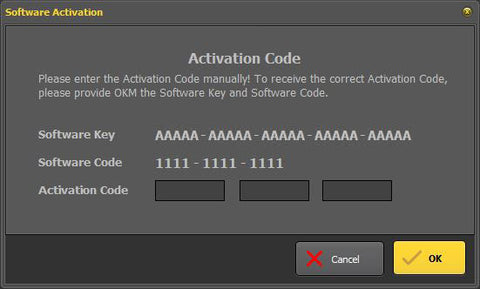
- Manual: You can contact your local dealer or OKM directly to obtain your Activation Code. When asked, please provide your Software Key and Software Code as indicated in Figure 2. Alternatively, you can get your Activation Code from our website: www.okmdetectors.com/software-activation.